 Sereno Routing guide
2. Setup
Your membership, the places you can sign in, and the settings that describe your boat. Every route sails with these.
Your membership
You sign in with a membership at svsabado.com. A free membership is enough. Your boat, polar, routes, trips and units follow you between the web, the Android app and the iPhone app.
Access tokens, the long strings Ray gave the first testers, stop working on 15 November 2026. Until then a token still signs you in, under Or sign in with an access token on the front page. A membership is a separate account: routes made with a token don't move to it.
Signing in on the web
Open https://sereno.svsabado.com and tap Sign in with your svsabado.com membership. If you aren't signed in on svsabado.com, it asks for your email and sends a sign-in link. Once you're signed in there, you come back to the Boat page. The browser keeps the sign-in, so next time it opens straight on the Boat page. No membership yet? Join on svsabado.com.
What the sign-in box can say:
| Message | What to do |
|---|---|
| That token wasn't accepted. | Check you copied all of it, with no space at either end. |
| Too many tries from here. Wait a few minutes and try again. | After ten wrong tries, sign-in from that address pauses for a few minutes. |
| The router isn't answering. Check the connection and try again. | Your connection is down, or the router is restarting. |
To sign out, use Sign out at the foot of the Boat page's side panel (behind the menu button on a phone), or at the top of the web edition's side panel.
The Boat page's side panel is how you move around: Weather map opens the map with no route, Routes opens the web edition's routes list, and Polars and Boat profile open the settings below. Items marked Coming aren't built yet.
iPhone and iPad
The iPhone app is in beta on TestFlight, Apple's app for testing apps before they're in the App Store. Ask Ray for an invitation, install TestFlight, then accept the invitation to install Sereno Routing. Tap Sign in and sign in with your svsabado.com membership, as on the web.
The web edition also works in Safari. To open it like an app, sign in, open Routes from the Boat page, then in Safari tap Share and Add to Home Screen. It opens on the map at your position if you allow location.
The Android app
The Android app is a separate, native app that signs in with the same membership and shares your routes and settings.
Getting it
- On the Android phone, sign in on the web. The web edition and the Boat page show a Get the Android app banner with a Download button. The Boat page's side menu also has Android app, under Guide, on every device.
- Tap Download. If you closed the banner, use the side menu's Android app, or the web edition's Settings, Android app.
- Android asks once to allow installs from your browser. Allow it, then open the download to install.
First run
The app opens on its Settings screen. Router address in the Router card is filled in already; change it only if Ray gives you a different one. Then, in the Membership card:
- Tap Open the svsabado.com sign-in page and sign in there with your membership.
- Press Get a code for the app on that page.
- Type the code into Code from the svsabado.com sign-in page and tap Sign in with this code.
The card then says Signed in with your svsabado.com membership as …. Tap Test connection: the Connection card should show a tick beside Router at … is up and a line for each model with the forecast run it holds. Never type in a code someone else sends you: it would sign this phone in to their account. Until 15 November 2026 the Token field still takes an access token. Back takes you to the Weather map. The gear icon on any screen's title bar opens Settings again.
Android, Settings, first run: the Router card with Router address and Token filled in, Save and Test connection, and the Connection card below showing the ticks after a test.
Updates
The app checks for a new build when it opens and once a day. When there's one, a strip under the title bar reads Build N is ready. Install, and a notification says the same. Tap Install. The first time, Android asks you to allow Sereno Routing to install its own updates: tap Open setting, turn on Allow from this source, come back and tap Install again.
What's different on the phone
- Avoid areas are drawn on the web. The phone lists them, switches them on and off, renames and deletes them.
- Polars are edited on the web. The phone chooses one, and can upload a
.polfile. - Trips are made, watched and deleted from Watching in the top bar, and a finished route's Watch departures makes a watched trip from it (see Watch departures from a route). The departure days' details and the brief PDF are on the web; a route made from a planner day shows its Brief tab on the phone too.
- The phone has Display settings of its own: wave heights in meters or feet, and a Day, Night or Auto theme.
Settings: Routing only, or Routing and planning
The top of Settings chooses how much of Sereno you see. Routing only is the map, your routes and their reports, and it's where new accounts start. Routing and planning adds the planner's Departures, Watching and briefs (see Turning on planning). The phone app follows the same choice, in its Mode card.
Settings: Boat
In the web edition, open the side panel's Settings tab (or Boat profile on the Boat page). Each field saves when you leave it, and the phone uses the same values.
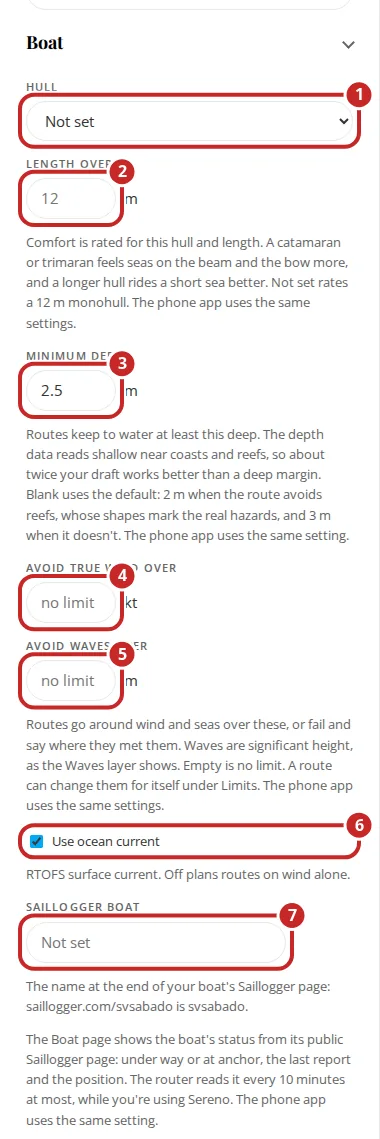
| Field | What it does |
|---|---|
| 1. Hull | Monohull, catamaran or trimaran. Comfort ratings depend on it: a multihull feels seas on the beam and the bow more. Not set rates a 12 m monohull. |
| 2. Length overall | Also for comfort: a longer hull rides a short sea better. |
| 3. Minimum depth | Routes keep to water at least this deep. The depth data reads shallow near coasts and reefs, so about twice your draft works better than a big margin. Blank uses 2 m when the route avoids reefs and 3 m when it doesn't. See Depth, reef and land data. |
| 4. Avoid true wind over | A hard limit in knots. Routes go around wind over it, or fail and say where they met it. Empty is no limit. |
| 5. Avoid waves over | The same for significant wave height, as the Waves layer shows it. AIFS has no waves, so it can't hold this limit. |
| 6. Use ocean current | On, routes use the RTOFS surface current forecast. Off, they're planned on wind alone. |
| Past the forecast | Off by default. On, a route that outlasts the forecast carries on in the month's typical weather instead of stopping at the forecast's end (see Past the forecast). |
| 7. Saillogger boat | If your boat has a public Saillogger page, the name at the end of its address (saillogger.com/svsabado is svsabado). The Boat page then shows where the boat is and when it last reported. See The Saillogger card. |
Units, at the top of Settings, switches between metric and imperial.
The motor and sailing angles
The motor belongs to the boat and is on unless you turn it off. Out of the box the router motors at 6.5 kt when sailing would be slower than 4 kt, runs the motor for at least 30 minutes once it starts, and with Prefer sailing on runs it only where it's at least 30% faster than sailing.
On the Android app these are set for the boat under Settings, Boat: the Motor switch, Motor below (kt), Motor speed (kt), Wait before motoring (min), Shortest motor run (min) and Prefer sailing. The same card holds the sailing angles (Closest to the wind, Deepest downwind, Angles are apparent, not true) , then Polar, by day (%, blank for 100) and Polar, at night (%, blank for 100). Tap Save boat.
In the web edition, change them for one route in the New route form: Motor for this route, Polar and Sailing angles (see The route's options). The form starts from the boat's values each time.
Android, Settings, Boat card: Name, Saillogger boat, the Hull chips, Length overall, the Motor switch with its four fields, the sailing angles, Polar by day and at night, Minimum depth, the two limits, Use ocean current and Save boat.
Settings: Polar
The polar is your boat's speed for each true wind speed and angle. Every route and every planner screening sails with the one chosen here.
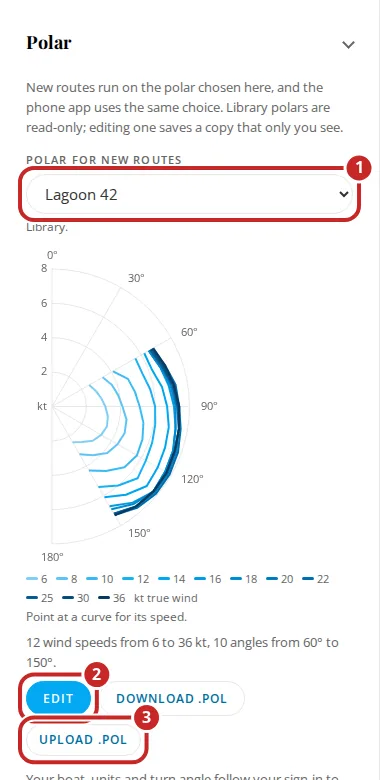
- Polar for new routes lists the library (about 180 boats, grouped by builder) and your own polars. Pick the nearest to your boat. The chart below shows its curves; point at a curve to see its wind speed.
- Edit opens the table in 5 degree steps. Library polars are read-only, so editing one saves a copy that only you see.
- Download .pol saves the table as a file.
- Upload .pol adds your own. The file is tab-separated: the first row holds the true wind speeds after a label cell, then there's one row per true wind angle, starting with the angle, with the boat speed in knots for each wind speed. A 0 means the boat doesn't sail there. Other formats aren't read.
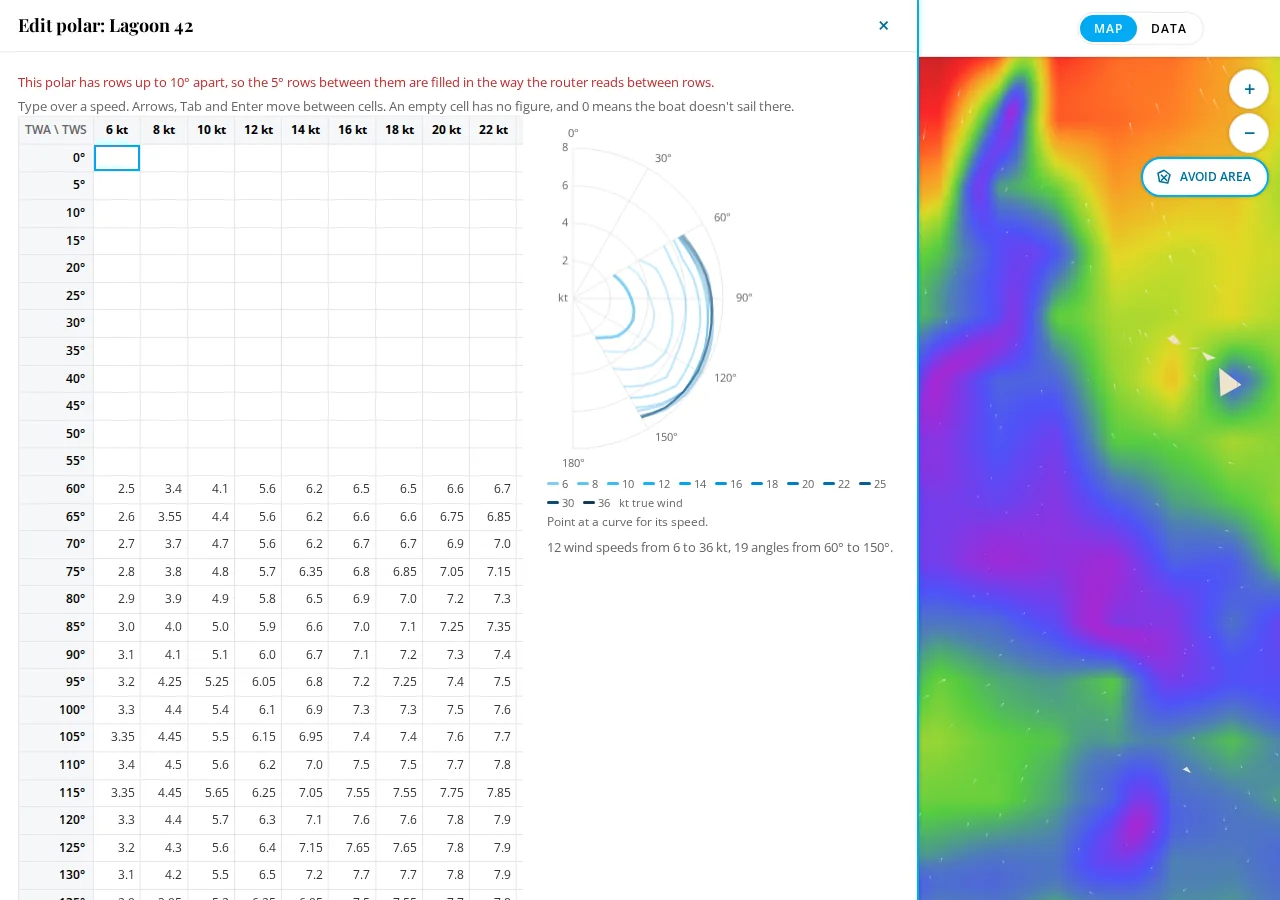
On the phone, Polar for routes in Settings chooses from the same list, and Uploaded polar uploads a .pol file.